How to make a baby dance video without uncanny results
- baby dance
- AI baby video
- family video
- photo to video
Make a Jawn dance video
One photo in, one deadpan bounce out. Upload, pick a style, generate.
Upload your photo
Choose your style
Video settings
Standard · 720p · 12s · 9:16
This video: 10 credits
10 credits per 720p video
Standard · 720p · 12s. A 1080p render is 50 credits.
By generating, you confirm you have permission to use this photo and agree to our Terms.
A baby dance video is the one place where "more motion" is usually the wrong answer. An adult dance prompt assumes visible hips, a long torso and a weight shift. A baby photo has different proportions. If the model applies adult choreography, it has to invent a longer body, older face or stronger legs. That is where the uncanny results come from.
The baby preset uses a smaller motion and a fixed camera. The goal is a baby reacting to music, not a baby performing a TikTok routine.
Protect the proportions first
The prompt keeps the baby's face, hair, body, outfit and background consistent, and explicitly forbids aging the baby or changing body proportions. That is the most important line in the whole instruction.
A clear photo with the body visible helps the model understand the real proportions. A chest-up photo gives it less information and more room to guess. A photo where a parent's hand is visible gives it an extra body part to animate.
The photo to use
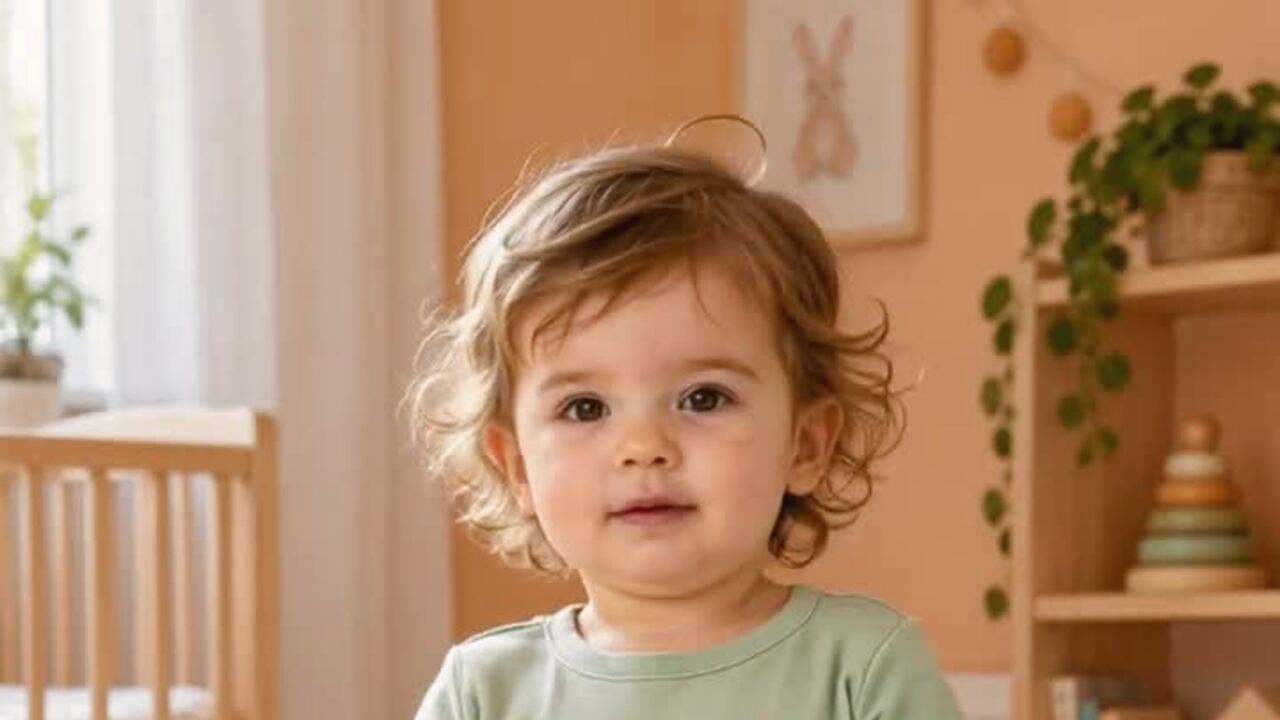
Use a photo where the baby is sitting or lying in a stable position, with the face clear and the body visible. Soft, even light is better than a flash. A window-lit photo on a plain bed or rug is ideal.
Avoid a second person, a blanket covering the body, or a costume that covers the face. The model treats every visible body as something to animate. A hand can become an extra limb.
What the clip should look like
The default is a soft side-to-side sway, light shoulder movement, tiny hand movements near the chest and a small smile at the end. The camera is fixed at chest height. The clip is one continuous take.
That is enough. A baby does not need a big dance to be funny. The small motion is the joke, and it is also the quality control.
The parent checklist
- Watch the face at the start, middle and end.
- Check the hands and the edges of the body.
- Look for an extra limb or a sleeve that becomes a hand.
- Decide whether the account is public or private.
- Consider whether the location or any other identifying detail is visible.
If the face has aged or the eyes have drifted, do not post it. Run the render again with a cleaner photo. No generative model is perfect, and a baby's likeness is worth the extra check.
Privacy and honesty
The upload and result are private to your account, but social platforms are a separate decision. A baby's face is sensitive personal information. If you post publicly, think about who can see it and whether the clip could be reused elsewhere.
The clip is generated, not a recording of the baby dancing. Do not use it to imply that a real event happened. For a family keepsake or a playful post, that distinction is easy to explain.
How to compare two clips
Run the first clip with the cleanest photo you have. If it is close but not right, do not immediately change the prompt. Change one input: a sharper photo, a simpler background, or a shorter duration.
Put the two clips side by side and compare the face at the same moment. The better clip is the one where the eyes and mouth stay consistent, even if the motion is smaller. A calm clip that looks like the baby is better than an energetic clip that looks like a different child.
Watch both clips on a phone. A face that looks stable on a desktop monitor can drift on a small screen, and the phone is where most people will see it.
When the face drifts
Face drift usually comes from a source photo with low detail, heavy shadow or a strong filter. Use a sharper photo with even light. Keep the head facing the camera.
If the face is still wrong, do not use the clip. A baby's likeness is more important than a finished post. A still portrait is a perfectly good fallback.
A note on sharing
Ask yourself who will see the clip before you post it. A private family group is different from a public feed. If the account is public, check the background for identifying details and decide whether you want the baby's face to be searchable.
The tool keeps the upload and result private to your account, but the social platform is a separate choice. You can enjoy the clip without publishing it.
A shorter clip is often better
If the baby's face drifts near the end, use a shorter duration. A six-second clip with a stable face is better than a twelve-second clip that loses the likeness halfway through.
The same rule applies to the source photo. A close, clear frame with the body visible is more useful than a wide room shot where the baby is small. The model needs detail, not context.
Start short, check the face, then lengthen only if the result holds. That is a cheaper workflow and a safer one.
FAQ
Is the motion safe for a baby photo?
The preset uses a small sway and a light bounce, not a full dance routine. It is designed to keep the baby's proportions and avoid adult choreography.
Will the baby's face stay the same?
The prompt preserves the face and real proportions. A clear, evenly lit photo gives the best result.
How much does a baby dance video cost?
A standard 720p twelve-second video is ten credits. A 1080p render is fifty. Failed renders are refunded.
Can I use a photo with a parent holding the baby?
It is not recommended. The model may animate the hand as a separate body part. Crop the parent out or choose a photo where the baby is alone in frame.
Does the video include music?
No. Add the track in TikTok, Reels or Shorts when you post.
Who can see the video?
The upload and result are private to your account. If you post publicly, the social platform's privacy settings apply.
Related reading
- What is the Jawn dance?
Where "That's the Jawn" came from, what the routine actually is, and why the whole feed learned it in a week.
- How to make a Jawn dance video from one photo
The full walkthrough: pick the photo, pick the style, generate, download, post.
- Posting your Jawn dance video on TikTok and Reels
Vertical export, sound choice, caption and hashtag notes from the clips that actually travel.
- Jerri "The JAWN": song, sound page and dance guide
The track behind the trend: who released it, why the word lands on the beat, and where the sound page lives.