How to make a Halloween dance video from one photo
- halloween video
- photo to video
- dance video
- Seedance
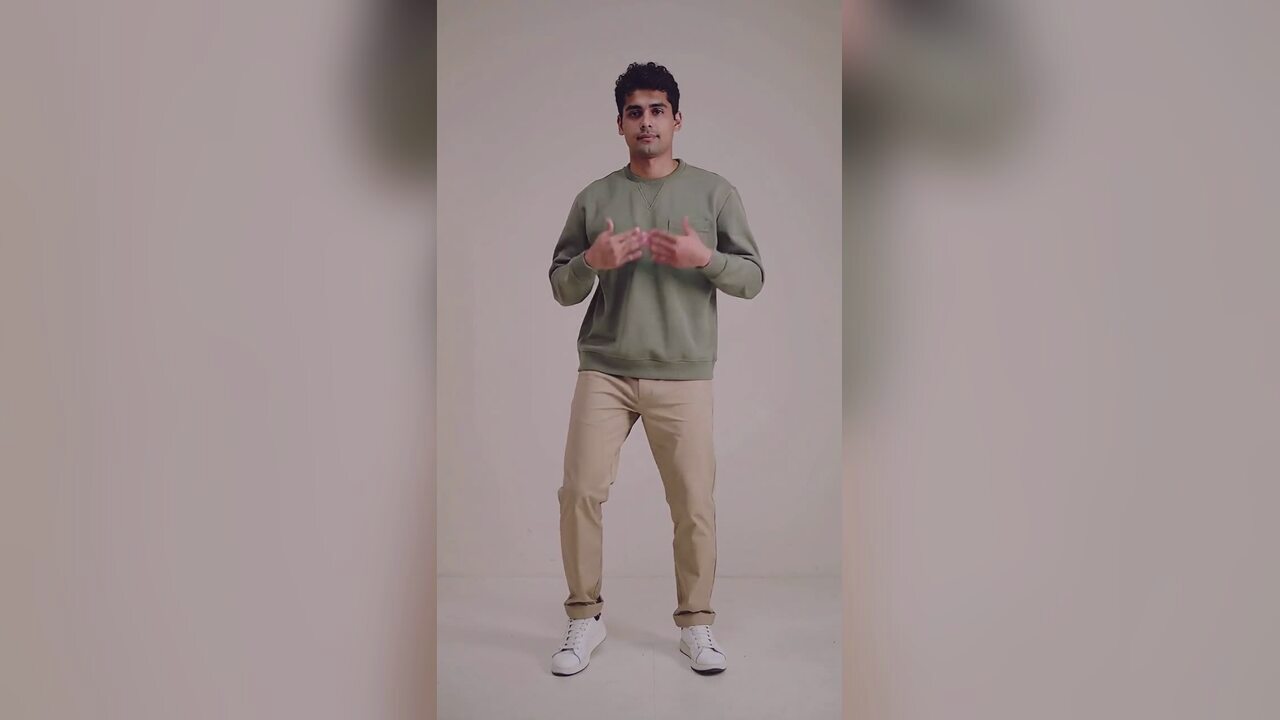
Make a Jawn dance video
One photo in, one deadpan bounce out. Upload, pick a style, generate.
Upload your photo
Choose your style
Video settings
Standard · 720p · 12s · 9:16
This video: 10 credits
10 credits per 720p video
Standard · 720p · 12s. A 1080p render is 50 credits.
By generating, you confirm you have permission to use this photo and agree to our Terms.
A Halloween dance video is a simple idea with a narrow quality window. The subject should look like the person in the photo, the costume should stay consistent, and the motion should be small enough that the model does not invent new limbs. Most bad clips fail because the source photo asked for too much, not because the dance prompt was too weak.
This walkthrough is for the person who already has a portrait and wants a short vertical clip. It is not a choreography tutorial. The tool handles the motion; your job is to give it a clean frame and check the result before you post.
Step 1: Start with a portrait, not a party photo
The best source is one person, facing the camera, evenly lit, with the body visible to about the knees or lower. A plain wall or a simple room is better than a crowded party. The model needs to see the hips and legs because the dance is a weight shift, not a head bob.
If you want a costume in the clip, generate the costume portrait first. The dance tool animates the image; it does not add the costume. That two-step workflow lets you reject a portrait before spending credits on a video.
Step 2: Pick the motion that fits the frame
The default Halloween dance is a relaxed side-to-side bounce with soft knees, shoulders rolling on the beat and hands close to the chest. It is deliberately small. A big jump or a fast spin looks impressive in a demo and falls apart in a twelve-second render.
Classic is the safest choice for a costume portrait. Cute works better for a baby, a pet or a plush toy. Lively adds bigger shoulder movement, which can be fun for a group or a party photo but is more likely to break the anatomy.
Step 3: Read the cost before you press generate
The default 720p, twelve-second, 9:16 render is ten credits. A 1080p render is fifty credits. The output is silent and has no watermark. If a render fails, the credits return automatically.
Do not buy a subscription for one clip. A one-time pack starts at $9.90. The pricing page shows the full ladder if you plan to post every week.
Step 4: Check three things before you post
Watch the clip once at full size and once on a phone.
- Face. Does it still look like the person? If the eyes drift or the jaw changes, stop.
- Hands. Are there five fingers? Are the hands merging into each other or into the costume?
- Feet. Do they slide? A small slide is normal; a foot that melts into the floor is not.
If the face is right but the motion is too big, regenerate with a calmer style. If the face is wrong, use a cleaner photo. Editing the video will not recover an identity the model never had.
Step 5: Add the sound in the app
The MP4 is silent. Add the track inside TikTok, Reels or Shorts when you post. That keeps the file reusable and avoids baking a licensed song into a download.
Keep the original MP4. Every platform re-compresses uploads, so re-exporting an already-uploaded version is how a sharp clip turns into mush.
What not to do
Do not upload a group photo and hope the model picks one person. Do not use a photo where the face is half in shadow. Do not choose 1080p before you know the composition works. Do not post a clip without checking the hands.
The most common mistake is over-directing. A long prompt with five costume changes, three camera moves and a rain effect gives the model too many things to invent. The Halloween dance works because it is a simple repeatable motion in a stable frame.
A shot list for the source photo
Before you upload, check five things:
- One person. No partner, no bystander, no pet in the corner.
- Facing the camera. A three-quarter pose is acceptable; a full profile is not.
- Body visible. The frame should reach the knees or lower.
- Even light. Window light or a soft indoor light. No hard flash against a wall.
- Simple background. A plain wall or a tidy room. No crowd.
If one item fails, the clip can still generate, but the risk goes up. A clean photo is the cheapest quality improvement you can make.
When the result is almost right
An almost-right clip usually has one of three problems. The face is recognizable but the motion is too large. The motion is good but the face drifts. The composition is good but the hands are wrong.
For too much motion, choose a calmer style or a shorter duration. For face drift, use a sharper source photo with less shadow. For hands, keep the arms closer to the body in the next source image. Do not keep adding adjectives to the prompt; change one input at a time.
If the clip is good but the background is distracting, do not try to fix it in the video. Use a simpler source frame. The model is preserving the room, not designing a new one.
FAQ
Can the video add a costume?
No. Use the Halloween costume generator first, then upload that portrait here.
How long does a render take?
Usually around three minutes for a twelve-second clip. You can leave the page; the render continues.
How much does one video cost?
A standard 720p twelve-second video is ten credits. A 1080p render is fifty. Failed renders are refunded.
Does the video include music?
No. The export is silent. Add the track in the social app.
Can I use a group photo?
It is not recommended. One subject gives the model a clear body to animate.
Can I post the result commercially?
You own what you make here and there is no watermark. Make sure you have the rights to the source photo and the music you add.
Related reading
- What is the Jawn dance?
Where "That's the Jawn" came from, what the routine actually is, and why the whole feed learned it in a week.
- How to make a Jawn dance video from one photo
The full walkthrough: pick the photo, pick the style, generate, download, post.
- Posting your Jawn dance video on TikTok and Reels
Vertical export, sound choice, caption and hashtag notes from the clips that actually travel.
- Jerri "The JAWN": song, sound page and dance guide
The track behind the trend: who released it, why the word lands on the beat, and where the sound page lives.