AI video color grading without changing the performance
- video editing
- color grading
- AI video
- post production
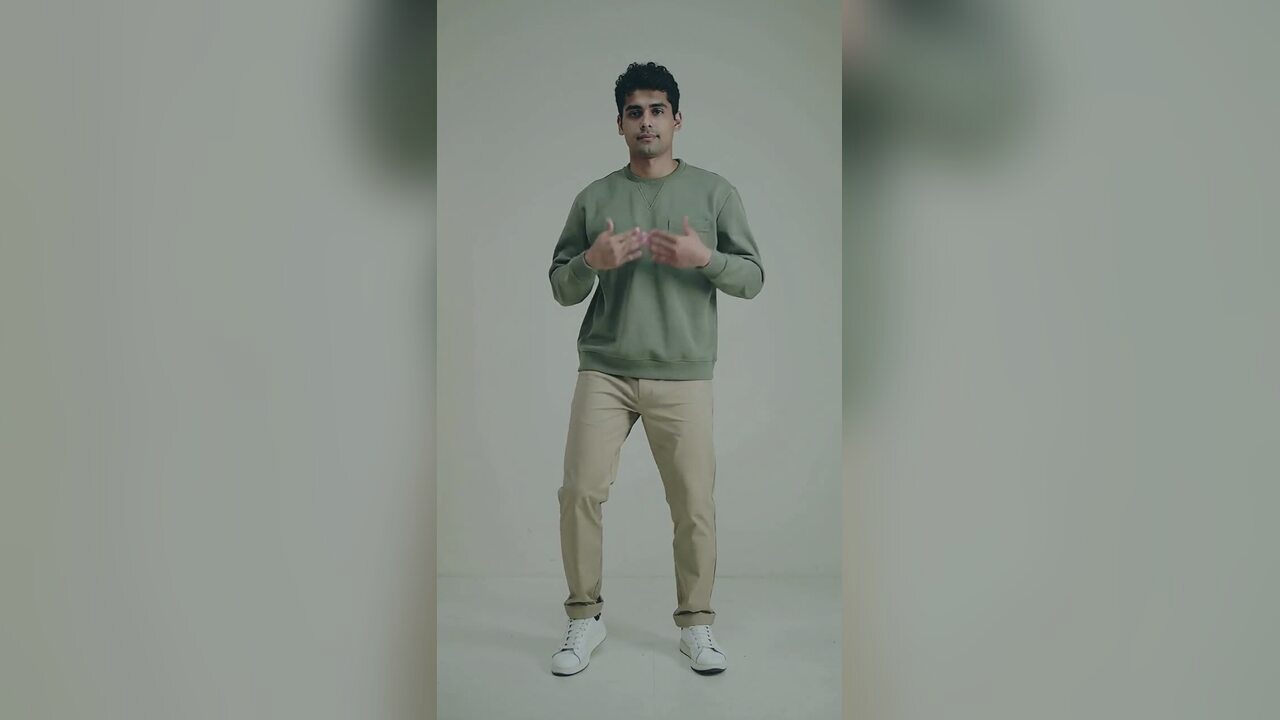
Restyle your clip
Upload a short clip. The preset changes the grade, lighting and atmosphere while keeping the motion and faces.
Prompt recipe
This is the exact instruction the server sends. The upload cannot rewrite it.
Restyle the source video into a cinematic, softly lit editorial clip. Preserve the original motion, timing, faces, body proportions and composition. Change only the color grade, lighting and atmosphere; do not add people, text, logos or watermarks.
Your edited clip
Your edited clip will appear here. Upload a short clip to start.
Not every video needs a new performance. Sometimes the clip is right and the look is wrong. The light is a little flat, the color is mixed, or the whole thing feels like a phone test rather than a finished post. That is a color and atmosphere problem, not a content problem.
An AI restyle is useful when you want to keep the motion, timing, faces and composition and change only the grade. It is not a replacement for editing, and it is not a way to fix a performance that does not work.
When to restyle
Use a restyle when the source clip already has the right subject and motion but the image feels unfinished. A phone clip in a kitchen with a yellow overhead light can become a warm, controlled portrait. A flat outdoor clip can gain depth. A series of clips shot in different rooms can be pulled toward one shared look.
Do not use it when the clip is blurry, the framing is wrong or the performance is weak. A grade cannot fix content.
What the edit should preserve
The prompt preserves the original motion, timing, faces, body proportions and composition. That is the contract. The output should look like the same clip with a different grade, not a new scene.
If the face changes, the timing shifts or a new person appears, the edit has crossed the line. Stop and run it again with a simpler direction.
Start with a small grade
A dramatic grade is easy to notice and hard to control. Start with a small change: warm the skin tones, lift the contrast a little, add a gentle glow. Watch the result on a phone. A subtle grade that holds together in motion is better than a dramatic still frame that flickers.
The most common mistake is stacking too many looks. Pick one direction: warm editorial, cool cinematic, soft daylight or moody night. Do not ask for all four.
The source clip
Use a short MP4, WebM or MOV clip, up to about eight seconds. Keep the subject and face visible. A vertical clip is fine; a horizontal clip is fine. The restyle keeps the framing, so it does not change the aspect ratio.
A shaky clip stays shaky. A low-resolution clip stays low-resolution. The tool changes the look, not the capture.
What to check
- Face at the start, middle and end. Look for drift or a sudden change in skin tone.
- Motion and timing. The clip should not speed up, slow down or cut.
- Background. It should stay continuous. A wall that changes color every second is a fail.
- Phone screen. Watch the result on a phone, not only on a desktop monitor. Flicker is easier to see on a small screen.
When a template is better
If you need captions, cuts, transitions or a specific duration, use a normal video editor. A restyle tool is not a timeline. It is one pass over the look.
If you need a new performance, use a generation tool. If you need a new scene, re-shoot or generate a new source. The restyle is for footage that already exists.
A small test before the full clip
Do not restyle a long clip on the first try. Use a short section, about three to five seconds, and test the look. The best test section includes a face, a hand and a background edge. Those are the places where a grade can fall apart.
If the test holds, run the full clip. If the face flickers or the background changes, simplify the direction. A smaller grade is easier to control than a dramatic one.
The test also tells you whether the source is good enough. A clip that is already noisy or overexposed will not become clean. Stop before you spend credits on a rescue that cannot work.
How to judge the grade in motion
Pause at the start, middle and end. Look at the skin tone, the whites and the darkest area. If the skin changes from warm to green, the grade is not consistent. If the whites clip, the highlights are too strong. If the shadows crush, the detail is gone.
Then watch at normal speed. A still frame can look beautiful and a moving clip can feel wrong. The eye notices flicker, pulsing contrast and a background that shifts color. Trust the moving version.
Finally, compare the result with the original on the same screen. A grade that only looks good next to a different monitor is not a fair test. Keep both files and make the decision side by side.
A note on skin tones
Skin is the hardest part of a grade. Warm light can make a face look healthy; too much warmth makes it orange. A cool grade can look cinematic; too much cyan makes a person look unwell.
Use the face as your anchor. If the skin is still natural, the rest of the frame can be more stylized. If the skin has changed color, pull the grade back even if the background looks better. A viewer notices a face before a wall.
For a series, keep the skin tones consistent across clips. The background can change; the person should look like the same person.
FAQ
Does this change the motion or timing?
No. The prompt preserves motion, timing, faces and composition. It changes the grade, lighting and atmosphere.
Can I add a costume or a product?
No. A restyle changes the look of an existing clip. Use a generation tool for new content.
How long can the clip be?
Keep it to about eight seconds and under 20MB. The page is built for short social clips.
Does the output have sound?
No. Add the original audio or a new track in your editing app.
How much does a restyle cost?
Ten credits per clip. Failed edits are refunded.
Can I restyle a clip I did not shoot?
Only if you have the rights to use and modify it. Do not upload someone else's footage without permission.
Related reading
- What is the Jawn dance?
Where "That's the Jawn" came from, what the routine actually is, and why the whole feed learned it in a week.
- How to make a Jawn dance video from one photo
The full walkthrough: pick the photo, pick the style, generate, download, post.
- Posting your Jawn dance video on TikTok and Reels
Vertical export, sound choice, caption and hashtag notes from the clips that actually travel.
- Jerri "The JAWN": song, sound page and dance guide
The track behind the trend: who released it, why the word lands on the beat, and where the sound page lives.